Create a frontend
There are two ways to add a frontend to a project: start from a template, which scaffolds a working repository and a build pipeline for you, or register a frontend whose code already exists somewhere else.
From a template (recommended)
This is the fastest path from nothing to a deployable frontend. Flightroom creates the repository in your Git provider, fills it with a working Module Federation project, adds a build-and-deploy pipeline, and injects the API key the pipeline needs to upload artifacts back to the platform.
Prerequisites
A connected code repository. If you have not connected one yet, follow GitHub, GitLab or Azure DevOps first.
Steps
-
From the Frontends page, click Add New Frontend. Next to it, Import from repository takes the other route, starting from code you already have.
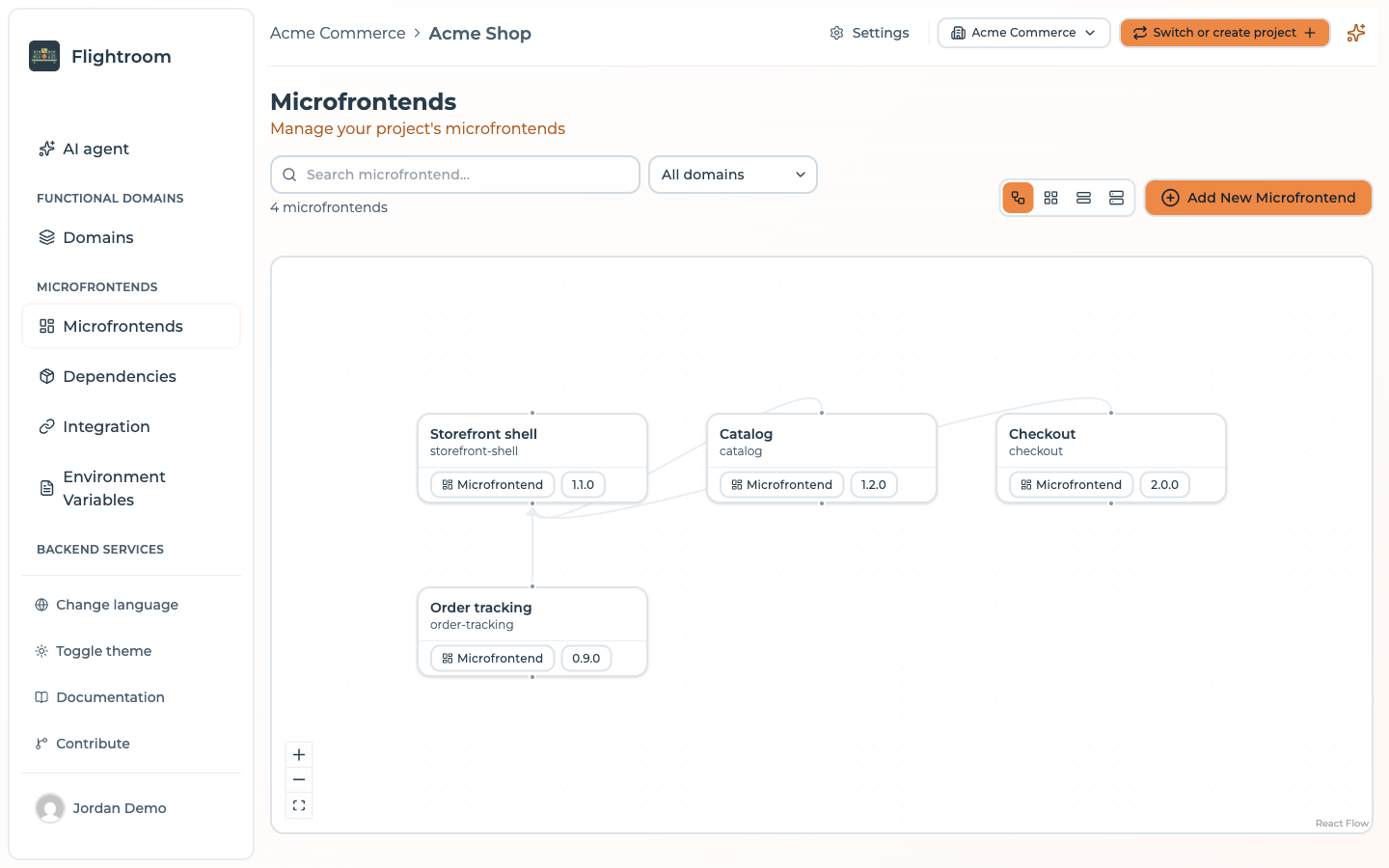
Both depend on a connected code repository. Without one, Import from repository is hidden and Add New Frontend skips the templates library and opens the empty form directly — the from scratch route.
-
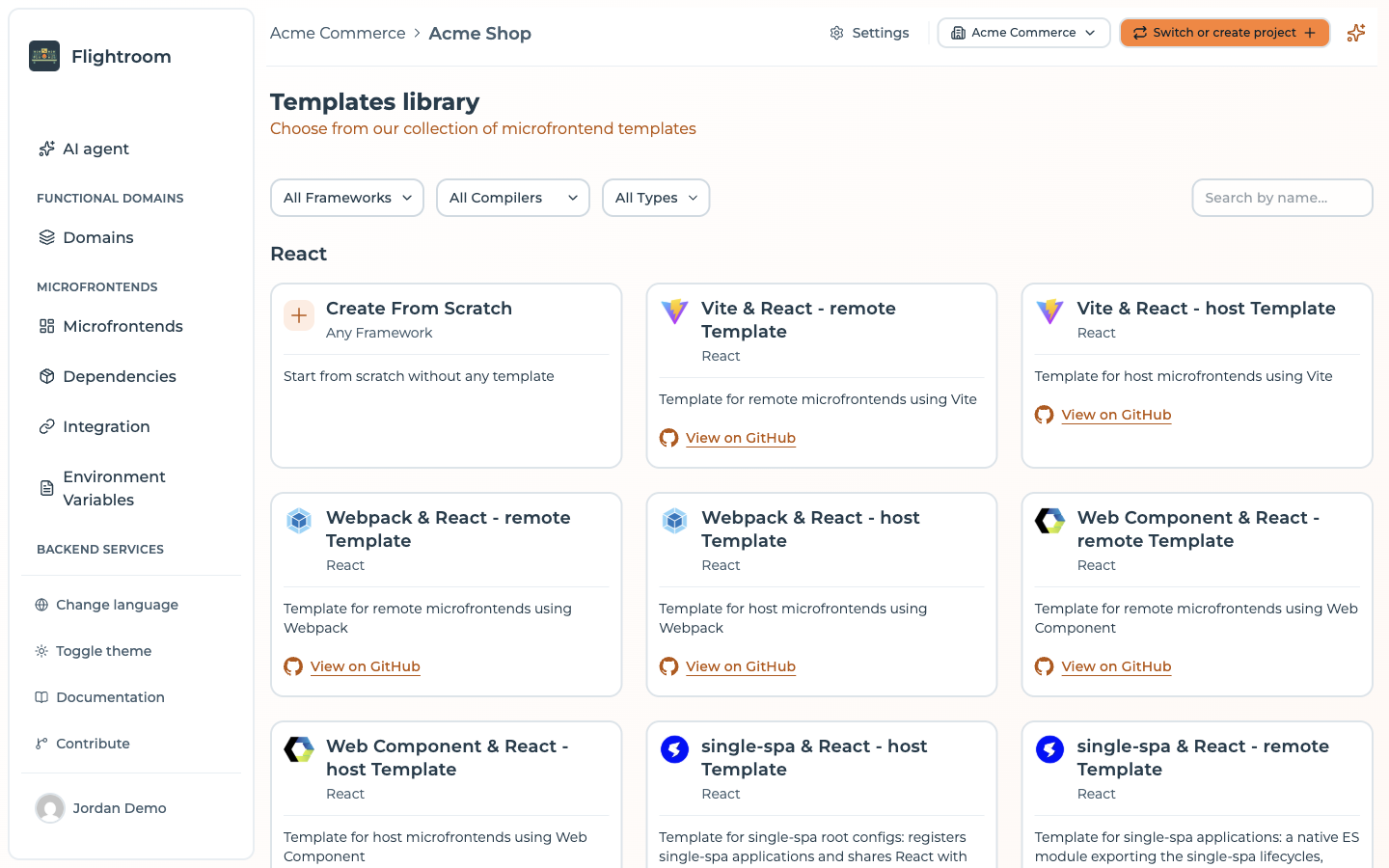
Choose a template from the templates library, which opens as a page of its own. Templates are grouped by framework and filtered by framework, compiler and host type, so you can narrow down to, for example, Vite + React + remote. Create From Scratch, the first card, skips the template.
-
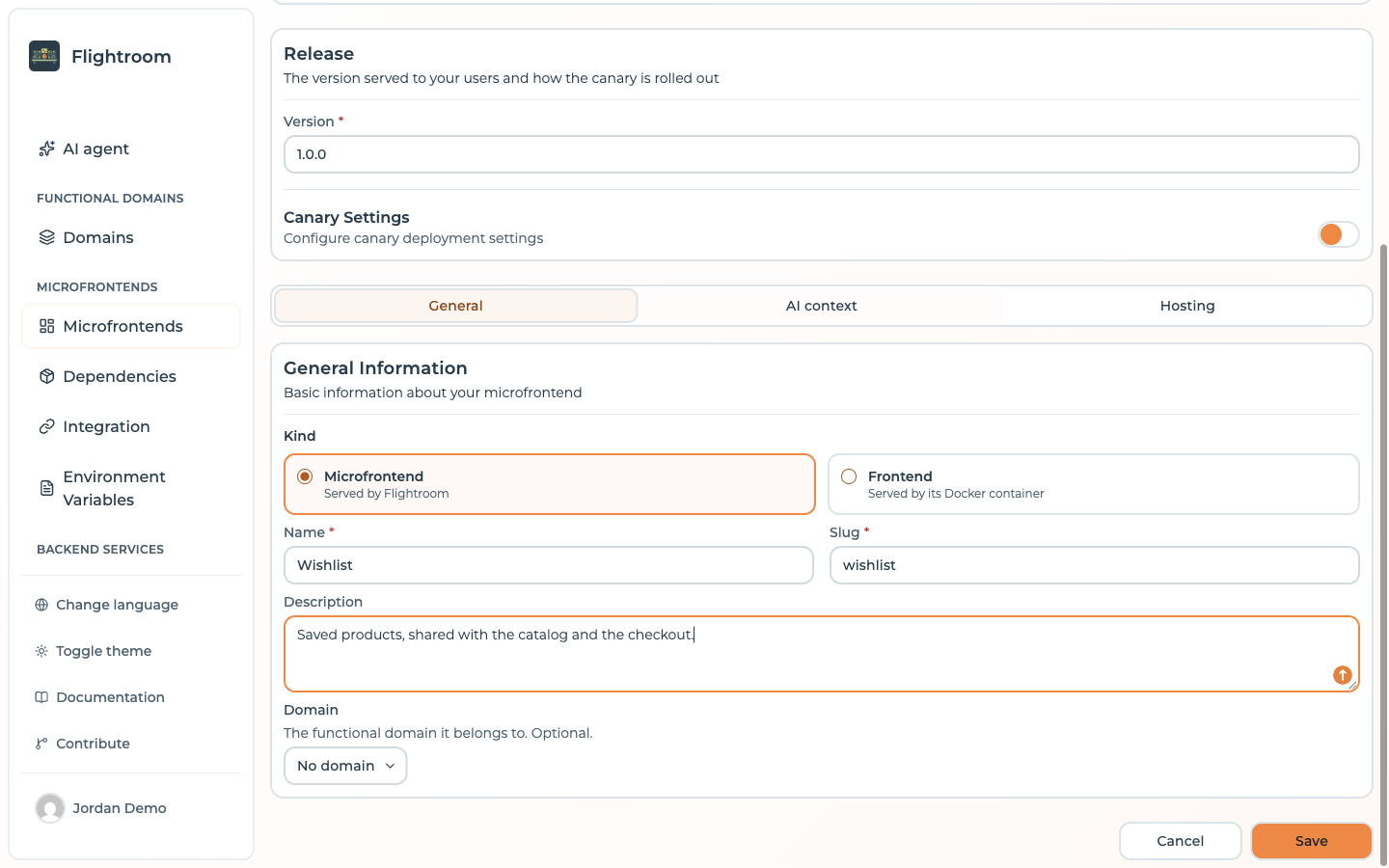
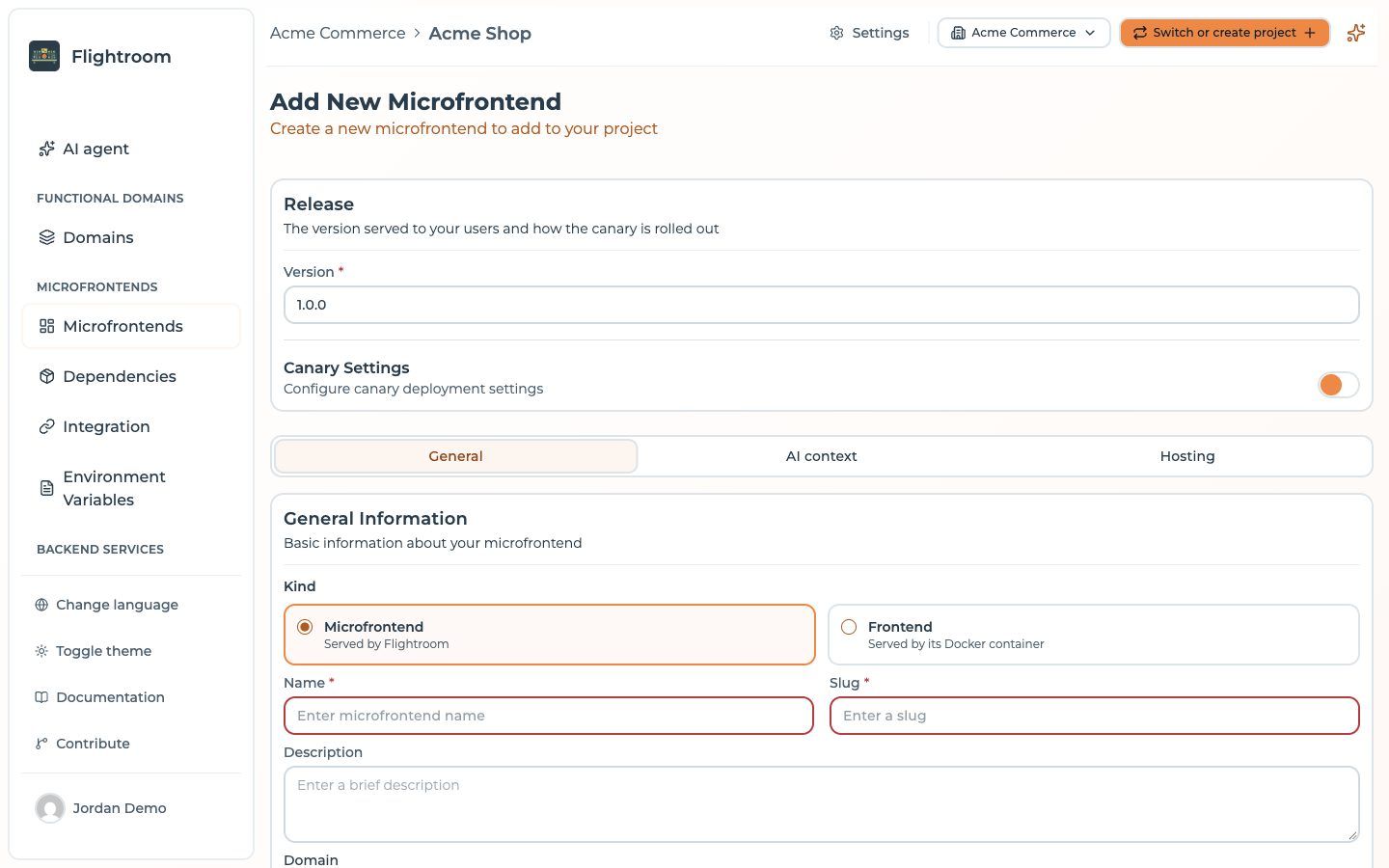
Fill in the frontend details. The form is the same one you get when editing later, minus the danger zone: a Release card on top, then the tabs.
Release
- Version — required, the version this frontend starts on. Pre-filled with
1.0.0 - Canary Settings — off by default, and there is no reason to turn it on while creating. When you do, the type starts on Session and the deployment type on Based on Version. See canary releases
General
- Kind — Bundle (served by Flightroom, the default) or Docker (served by its Docker container). See Bundle or Docker
- Name — the display name, 3 to 100 characters
- Slug — 3 to 50 characters. While you type the name, the slug is derived from it: lowercase,
with every character other than a letter or a digit turned into
-. You can still edit it before saving. It ends up in your public URLs, so choose carefully - Description — optional
- Domain — optional, the functional domain the frontend belongs to
AI context — optional Markdown notes for the AI agents that work on this frontend, at most 20,000 characters. What applies to every frontend belongs in the project context, in Settings.
Hosting — see hosting options. A Docker frontend has a Container tab here instead.
Repository — only shown when the project has a code repository connection. Created from a template, its Code Repository switch is already on:
- Source Code Provider — which connected repository the new repo is created in
- GitLab Group — on a GitLab connection that can see more than one group, the group to create it under
- Repository Name — the name of the repository to create, pre-filled from the slug. Availability is checked as you type
- Private Repository — a switch, on GitHub. Off creates a public repository
- Version — required, the version this frontend starts on. Pre-filled with
-
Click Save.
What happens behind the scenes
Creating from a template is not just a git init. Flightroom:
- Creates the repository in the selected provider, under the user account, organization or group you chose.
- Downloads the template archive and pushes its contents as the initial commit.
- Injects a build pipeline matching your provider and compiler — a GitHub Actions workflow
(
.github/workflows/build-and-deploy.yml), a GitLab CI file (.gitlab-ci.yml) or an Azure DevOps pipeline (azure-pipelines.yml). The pipeline is pre-filled with your frontend's slug and the API base URL of this installation. - Registers the frontend in the project, linked to the new repository, with the template's entry point and stack.
The pipeline authenticates its upload with the secret MICROFRONTEND_ORCHESTRATOR_API_KEY. Most of
the time that secret already exists before you create anything: an API key with the MANAGER role,
valid for one year, is created when the code repository connection is made, and stored where
every repository of the connection can read it — an organization secret on a GitHub organization, a
CI/CD variable of the group on GitLab, the variable group MFE_ORCHESTRATOR_SECRETS on Azure
DevOps. Scaffolding adds a key of its own, as a secret of the new repository, only on a personal
GitHub account, where there is no organization to hold one. See
keys created for you.
Because the deploy secret is in place, the generated pipeline works on its first run — you do not have to copy any key by hand. Keys expire after a year: when the pipeline's upload starts failing with an authentication error, that is the first thing to check.
From scratch
Pick Create From Scratch in the templates library — or click Add New Frontend in a project with no code repository connection — when the code already exists, or when you want to bring your own project layout. You fill in the same release and general information, plus the hosting configuration:
- Flightroom Hub — you will upload builds to the platform
- Custom Source — you will upload builds to your own bucket
- Custom URL — the files are already served from a URL you control
See Hosting options for the details of each, and Versions and builds for how to get artifacts in.
The Code Repository switch of the Repository tab starts off. Turned on at creation, it creates a new, empty repository; there is no template to push and no pipeline to add. To link a repository that already exists, save first and pick it under Select Repository when editing, or use Import from repository on the Frontends page, which creates one frontend for each repository you tick among those of a connection — repositories already linked to a frontend or a service are skipped. A linked repository enables the Build action on the frontend card, but Flightroom will not add a pipeline to a repository it did not create. To use the same automation, copy the relevant pipeline from the template-pipelines repository; the API key it needs is usually already there from the connection (see above), and otherwise you create one yourself.
Bundle or Docker
The Kind at the top of the General tab decides who serves the code:
| Bundle | Docker | |
|---|---|---|
| Served by | Flightroom, from the hub, your bucket or a custom URL | Its own Docker container |
| Configured in | Hosting tab | Container tab — runtime, image, URLs, environment, config maps and secrets, as for a service |
| Version | Chosen in Release | Read-only: set by the pipeline each time it registers an image version |
| Canary | Available | None: Flightroom cannot split the traffic of a container |
| Parents | Any | None. It cannot be the remote of a host, so in the Diagram view no link can end on it |
| Bundle upload | Accepted | Refused with DOCKER_FRONTEND_UPLOAD_NOT_ALLOWED: its pipeline registers the image of each version instead |
A frontend created under a parent — from a link dropped on empty canvas in the Diagram view — is always a Bundle, and one that already has parents cannot be switched to Docker. The templates scaffold a pipeline that uploads a bundle: pick Docker on a template and the form warns you to change the pipeline so it builds the Docker image and registers its version.
A Docker frontend never appears in the manifest of /serve/all: no host
loads it as a remote.
Editing a frontend
Opening a frontend from its card leads to the same form in edit mode — directly through Configuration, or, when the card offers Edit with AI, through the Details & settings tab next to the AI workspace. Release sits at the top, outside the tabs, because the version and the canary are what decide which bytes a browser gets; everything else is behind a tab:
| Where | Contains |
|---|---|
| Release (above the tabs) | Version, and Canary Settings — progressive rollout, see Canary releases. A Docker frontend shows its version read-only and no canary |
| General | Kind, name, slug (read-only), description, domain |
| AI context | Markdown notes for AI agents, at most 20,000 characters |
| Hosting | Hosting type, storage or URL, entry point. Container instead, for a Docker frontend |
| Repository | The linked repository — only when the project has a code repository connection |
| Danger Zone | Delete this frontend |
In Repository, Select Repository lists the repositories of the chosen connection, so you can link one or change it. Once a repository is linked and saved, Rename repository renames it at the provider; local clones then have to update their remote URL — GitHub and GitLab redirect the old one, Azure DevOps does not. The card of a frontend with a linked repository also carries Clone repo, with the HTTPS and SSH clone commands and shortcuts to clone in VS Code or IntelliJ IDEA.
Switching tab keeps what you typed: every panel stays mounted, so a value entered under Hosting survives a detour through General. A tab whose fields failed validation is marked with a dot, and submitting an invalid form jumps to the first one — an error is never hidden behind an inactive tab.
Remember that edits take effect for your users only after the next deployment.