Get started with Flightroom
Flightroom is an open-source enterprise platform where anyone can build applications and AI agents by describing them in plain language. The AI writes the code in your own Git repositories, your engineers review it, and one click deploys it to your Kubernetes through GitOps and Argo CD, with your single sign-on, your roles and your AI models.
This tutorial guides you through your first steps with the platform.
The quick start is the condensed version of this page: describe an app, review it, deploy it.
Flightroom can be used in two ways:
🌐 Online Console
Recommended for TutorialUse our hosted version - no installation required!
- ✅ No setup needed
- ✅ Always up to date
- ✅ Perfect for getting started
🔧 Self-Hosted
Deploy on your own infrastructure for full control.
- ✅ Complete control
- ✅ Custom configuration
- ✅ Production ready
In this tutorial, we'll use the online console available at https://console.flightroom.dev to explore Flightroom's features.
Step 1: Access the Console & Register
Open your browser and navigate to:
https://console.flightroom.dev
To get started, you need to create an account. You have two options:
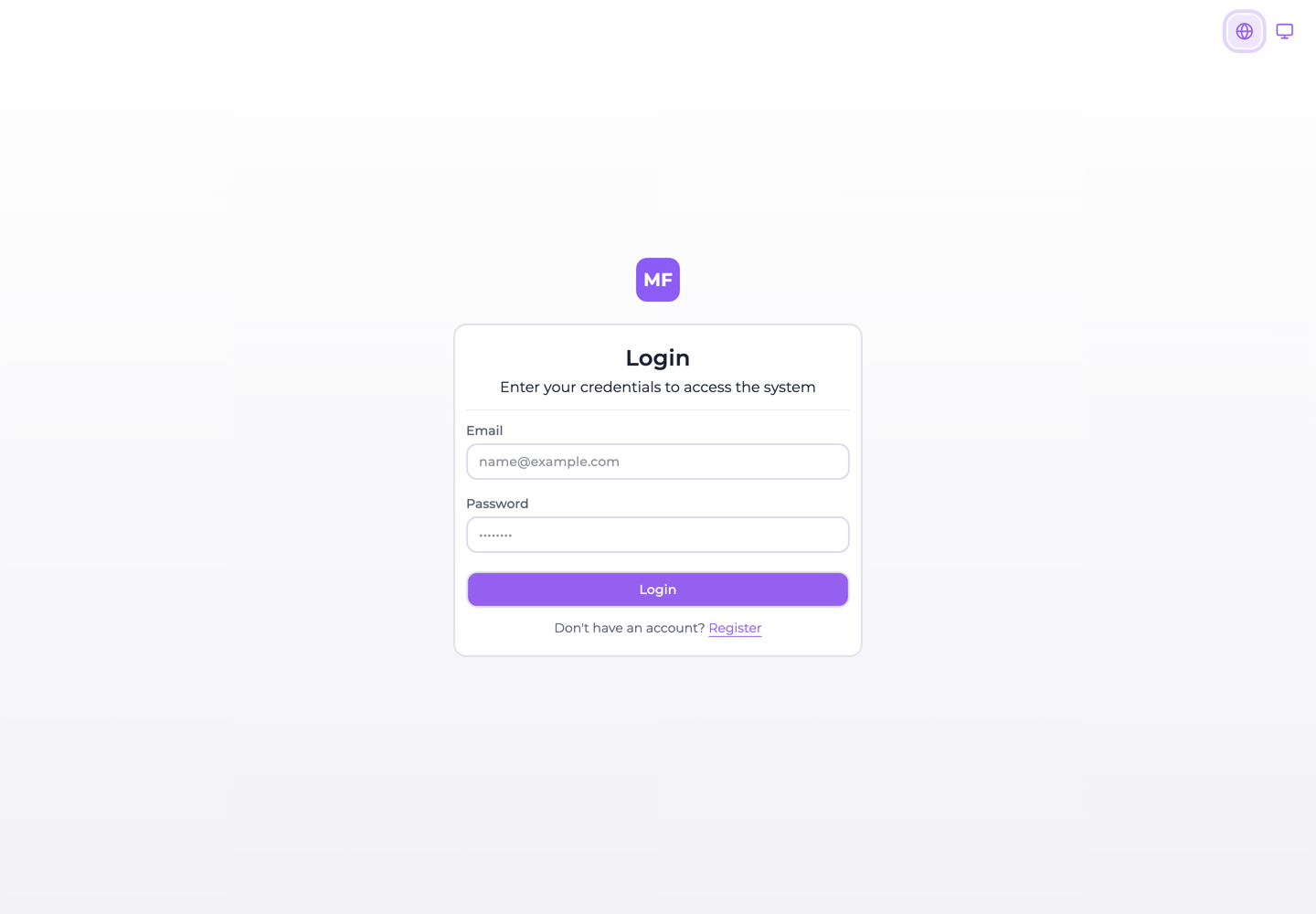
Option 1: Register with Email
- Click on "Register" or "Sign Up"
- Enter your email address and create a password
- Verify your email — on the hosted console, and on any self-hosted instance with SMTP configured; without SMTP there is no verification step at all
- Sign in with your credentials
- Create your organization. The five-step project wizard then opens inside it: name, environments, storage, repositories, collaborators
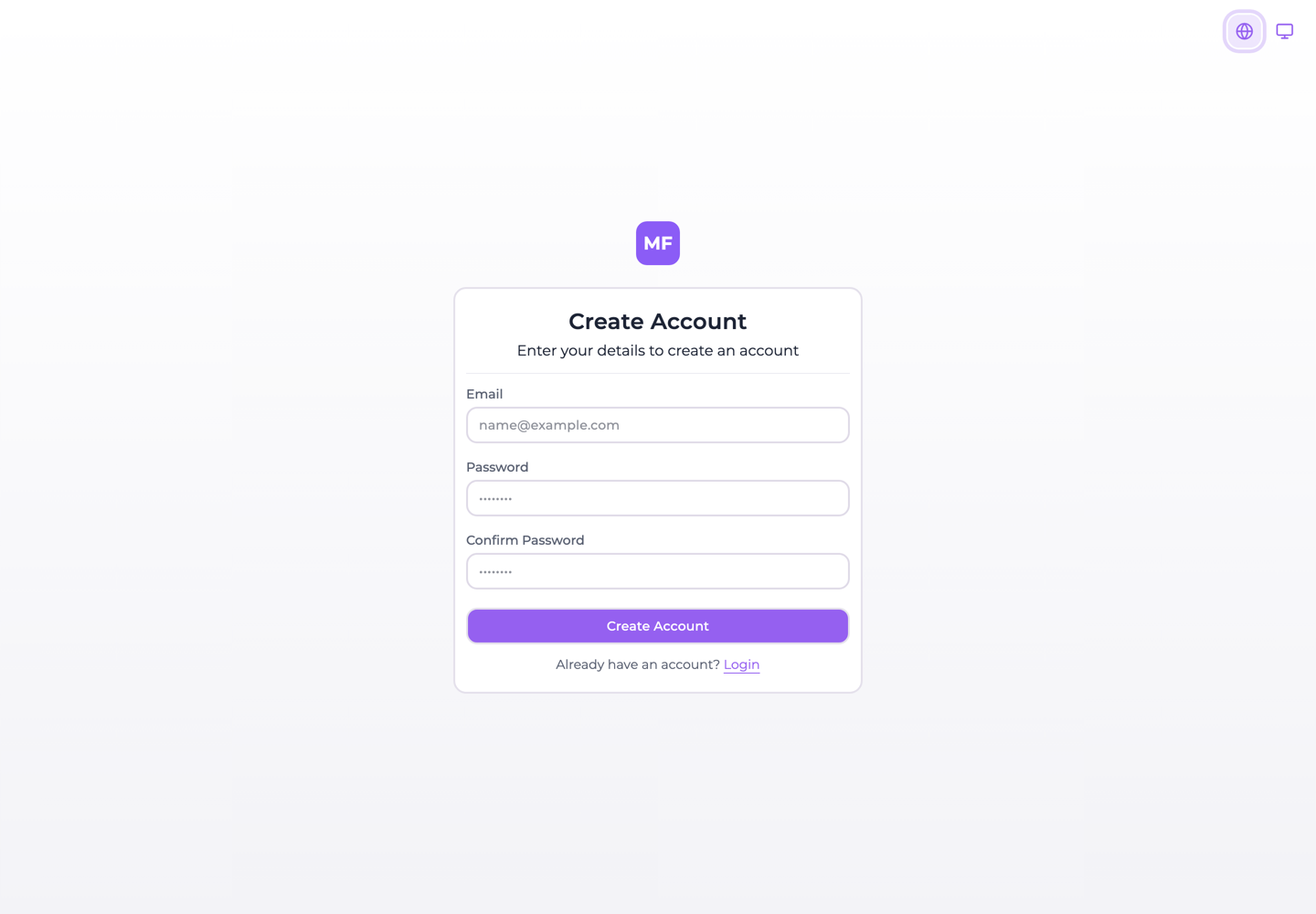
Option 2: Sign in with Google SSO
- Click on "Sign in with Google"
- Select your Google account
- Authorize Flightroom to access your basic profile
- You'll be automatically signed in
- Create your organization. The five-step project wizard then opens inside it: name, environments, storage, repositories, collaborators
Using Google SSO is faster and you don't need to remember another password!
If you already have an account, simply sign in with your email or Google account.
Step 2: Connect Your Code Repository
The AI writes your apps into repositories Flightroom creates in your Git provider, so the first thing to connect is that provider.
-
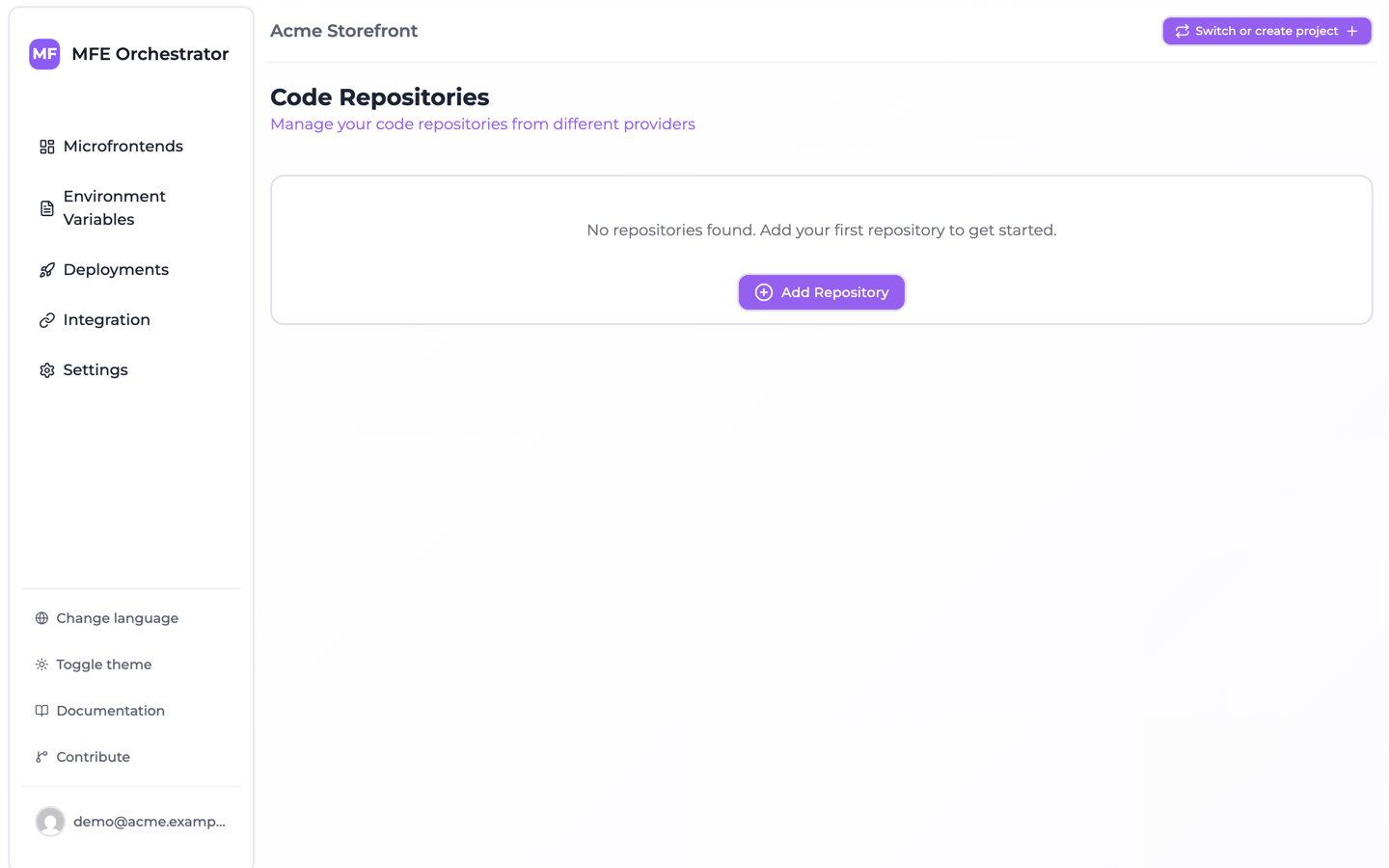
Navigate to Code Repositories or open Settings → Resources → Code Repositories
-
Click the Add Repository button and pick your provider
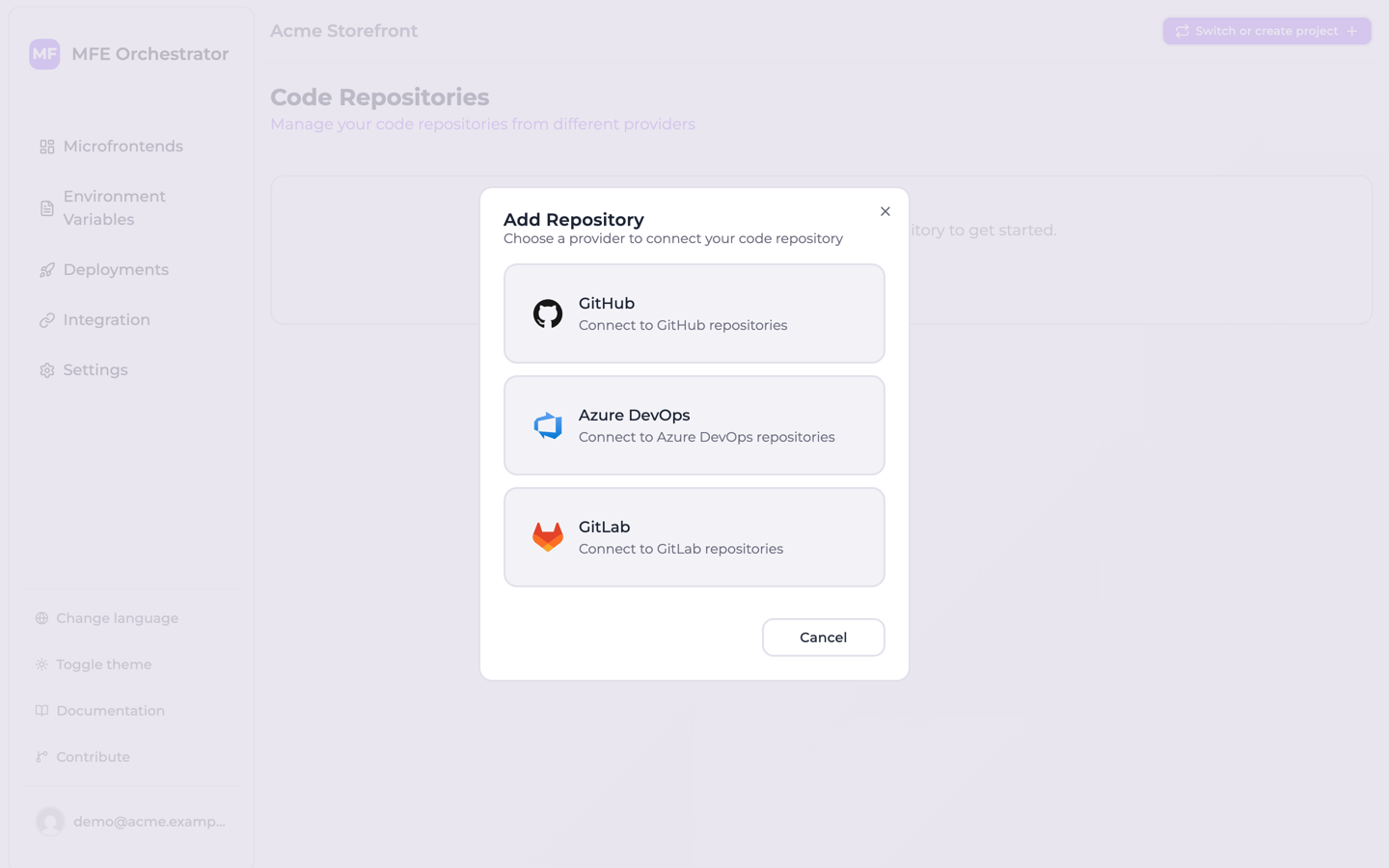
Flightroom supports multiple repository providers:
- GitHub - Most commonly used for public and private repositories
- GitLab - Self-hosted or GitLab.com
- Azure DevOps - Microsoft Azure Repos
For most users, we recommend starting with GitHub as it has the simplest setup process.
Step 3: Add an AI to Your Organization
Flightroom uses the AI model your organization chooses, with your own credentials.
- Open the organization menu in the header and choose Organization settings
- Open the AI tab and choose Add AI
- Pick a provider — Claude through Anthropic, Azure AI Foundry or AWS Bedrock, GPT through Azure OpenAI, or Gemini — and enter its credentials
Only organization owners and admins can add an AI. Once one exists, every project of the organization can use it, unless an admin restricts a project to some models or turns AI off for it. See AI models.
Step 4: Build Your First App with AI
- Open Domains in the sidebar and create a New domain. A domain groups the web interfaces and services of one business capability, for example Expenses or Onboarding
- On the domain's Edit with AI tab, describe what the team needs and press Generate proposal
- The AI proposes the components the request needs: up to three microfrontends (web interfaces) and three services (backends and agents). Adjust names, repositories and templates, then confirm
- Flightroom creates each repository from its template, CI pipeline included, and the AI writes
a first version on an
ai/…branch - Keep refining through chat, then Open a pull request, apply the change, or discard it
Your base branch is untouched until someone acts on the proposal. See Generate a domain with AI and AI changes.
Congratulations! 🎉 You have your first app in your own repositories. To put it in front of users, deploy it to Kubernetes.
Alternative: Create a Microfrontend by Hand
If you would rather start from a template without the AI — for example a web interface served by Flightroom and composed into a host with Module Federation — create a microfrontend directly.
- Return to the Home page by clicking on the home icon or logo in the navigation menu
- Click the Add New Microfrontend box at the center of the screen

- Choose a template from the list
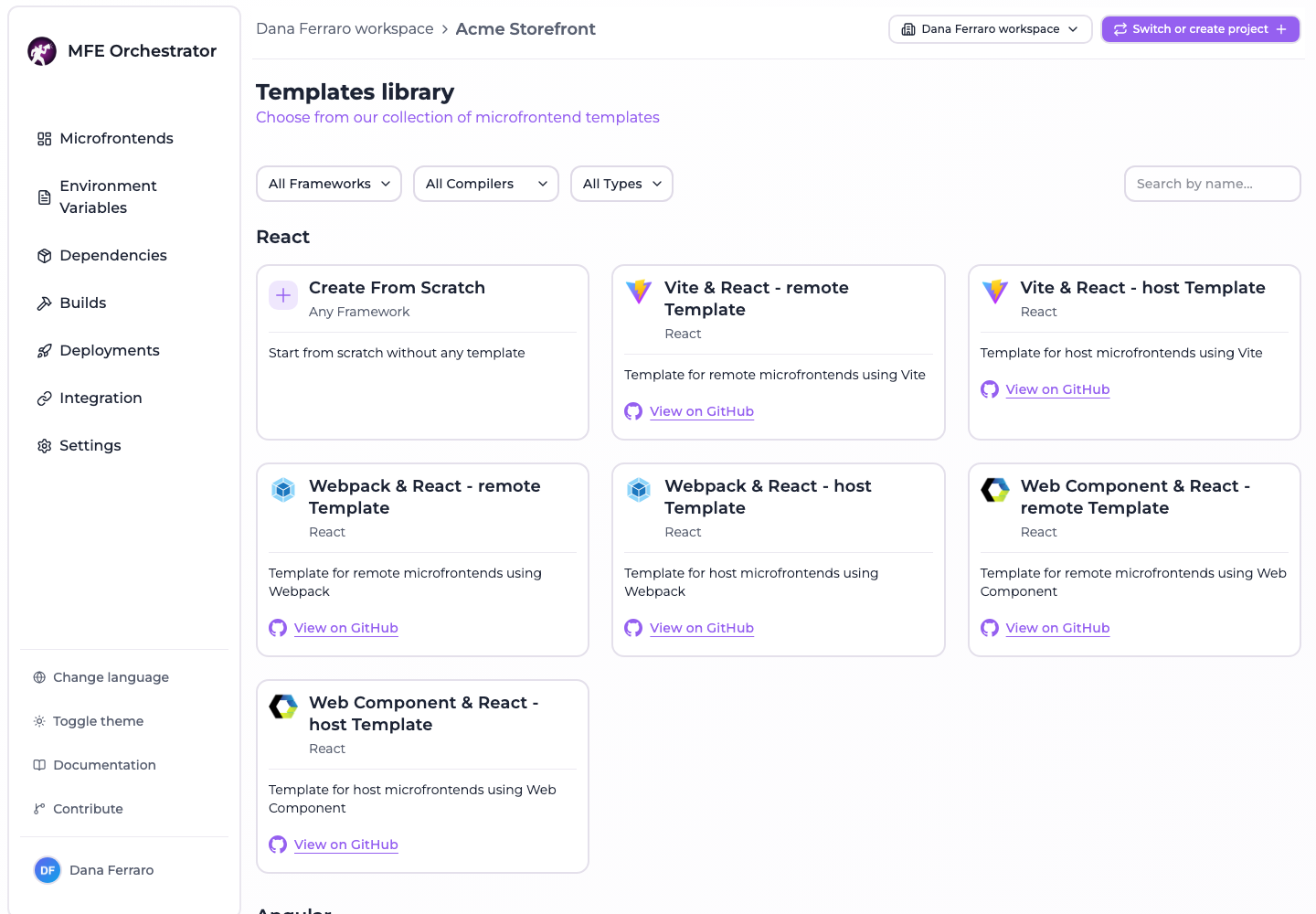
- Fill in the required information. The form is split into tabs — General, Hosting and Repository — and what the template needs is spread over two of them:
- General → name: A descriptive name for your microfrontend
- General → slug: A URL-friendly identifier (e.g., "my-app"). It is filled in from the name as you type, and cannot be changed after creation
- Repository → source code provider: The repository connection to create the new repository in. Already selected when the project has only one, or when one of them is the default
- Repository → repository name: The name of the repository to create. Also pre-filled from the name, so you only touch it if you want a different one
Because you came from a template, the Repository tab arrives with its switch already on. If the tab is missing entirely, the project has no repository connection yet — go back to Step 2.
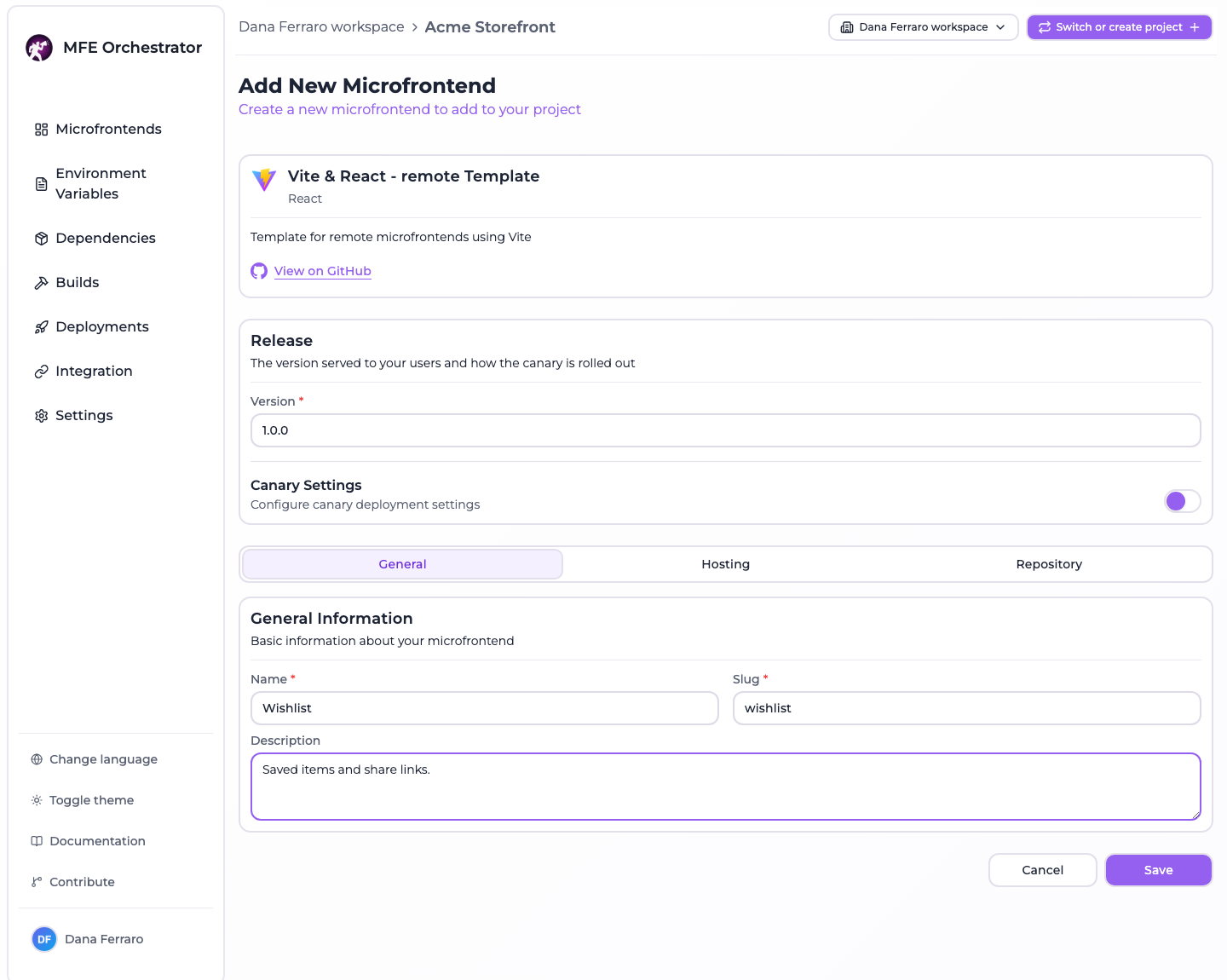
- Click Save to finalize the setup
Flightroom will automatically:
- ✅ Create the repository in your selected source code provider with the chosen template
- ✅ Initialize the microfrontend with all necessary configurations
- ✅ Set up the deployment pipeline ready for your first deployment
This process usually takes a few seconds. You'll see a success message once everything is ready!
Your microfrontend now exists. The microfrontend quick start takes it from here to a deployed version and a rollback.
Next steps
- Understand the model — organizations, projects, domains, environments and deployments, and how they relate.
- Set up your environments — dev, UAT, production or your own stages, each its own Kubernetes namespace.
- Deploy to Kubernetes — connect a GitOps repository and your Argo CD once, then ship with one click.
- Keep improving with AI — ask for the next change on any microfrontend, service or domain.
Going further
- Guardrails — what the AI can and cannot touch, and how review and roles keep it in check
- Console assistant — ask the console to act for you, with a confirmation before anything destructive
- Microfrontends — versions, hosting options, canary releases and generated Module Federation configuration
- Organizations — the tenant that owns your projects, and who reaches which one
- Members and roles — invite your team
- Self hosting — run the platform on your own infrastructure