Project members and roles
A user can be a member of several projects, and a role is recorded for them in each one. The role decides some things and not others: it guards the members list, the delivery settings, the AI and everything that writes to your Git provider or your cloud, but most of the day-to-day configuration is open to every member. Read Roles before you invite anybody.
Which projects a person can reach at all is decided one level up, by the organization that owns them:
The organization role answers which projects. The project role answers what they may change in one.
Two consequences are worth keeping in mind while reading the rest of this page:
- Whoever administers the organization reaches every project in it, invited or not, and acts there as an Admin. Somebody who must be read-only cannot be an organization owner or admin.
- Inviting somebody to a project also puts them into the owning organization, as a plain member. See Inviting a member below.
Members live under Settings → Access → Team Members.
Roles
There are three roles:
| Role in the console | Stored and returned by the API as | Notes |
|---|---|---|
| Admin | OWNER | The last Admin of a project cannot be removed |
| Editor | MEMBER | |
| Viewer | VIEWER | The value the invite dialog starts on |
The console is not consistent about which of the two names it shows. The invite dialog offers
Admin, Editor and Viewer; the badge on the members list prints the stored value — OWNER,
MEMBER or VIEWER — and so does the API. Invitation emails name the role as well.
What the role decides
| Action | Who may do it |
|---|---|
| Invite and remove members, change their role | Project Admin, or an organization Owner or Admin |
| Change the GitOps, Argo CD and pipeline-template settings | Project Admin, or an organization Owner or Admin |
| Ask for an AI change, apply it, open its pull request, discard it | Anyone but a Viewer |
| Create a code repository, for a microfrontend or a service | Anyone but a Viewer |
| Create, edit, test or delete storages and databases | Anyone but a Viewer |
| Deploy, when the project has GitOps on | Anyone but a Viewer |
| Change anything through the console assistant or an MCP client | Anyone but a Viewer, within what their role allows |
Organization owners and admins are never refused any of these: they act in every project of their organization as an Admin would.
Everything else is open to every member who reaches the whole project, Viewers included: renaming and deleting the project, editing microfrontends, services, environments and variables, and deploying a project that does not have GitOps on. The console may still show a button to a Viewer that the backend then refuses. Invite somebody to a project only if you are comfortable with them changing its configuration.
Keep at least two Admins, so the protection of the last one cannot strand a project whose only Admin has left.
Restricting who can deploy to production
There is no per-environment permission split. With GitOps on, Viewers
cannot deploy at all, but every Editor can deploy every environment, prod included. Without
GitOps, every member can. To keep production to a smaller group, give it a separate project
whose membership is that group. Redeploy is not restricted by role at all: it re-activates a
previous snapshot in Flightroom, and does not touch the cluster — see
Rolling back on Kubernetes.
Inviting a member
-
Go to Settings → Access → Team Members and click Invite user.
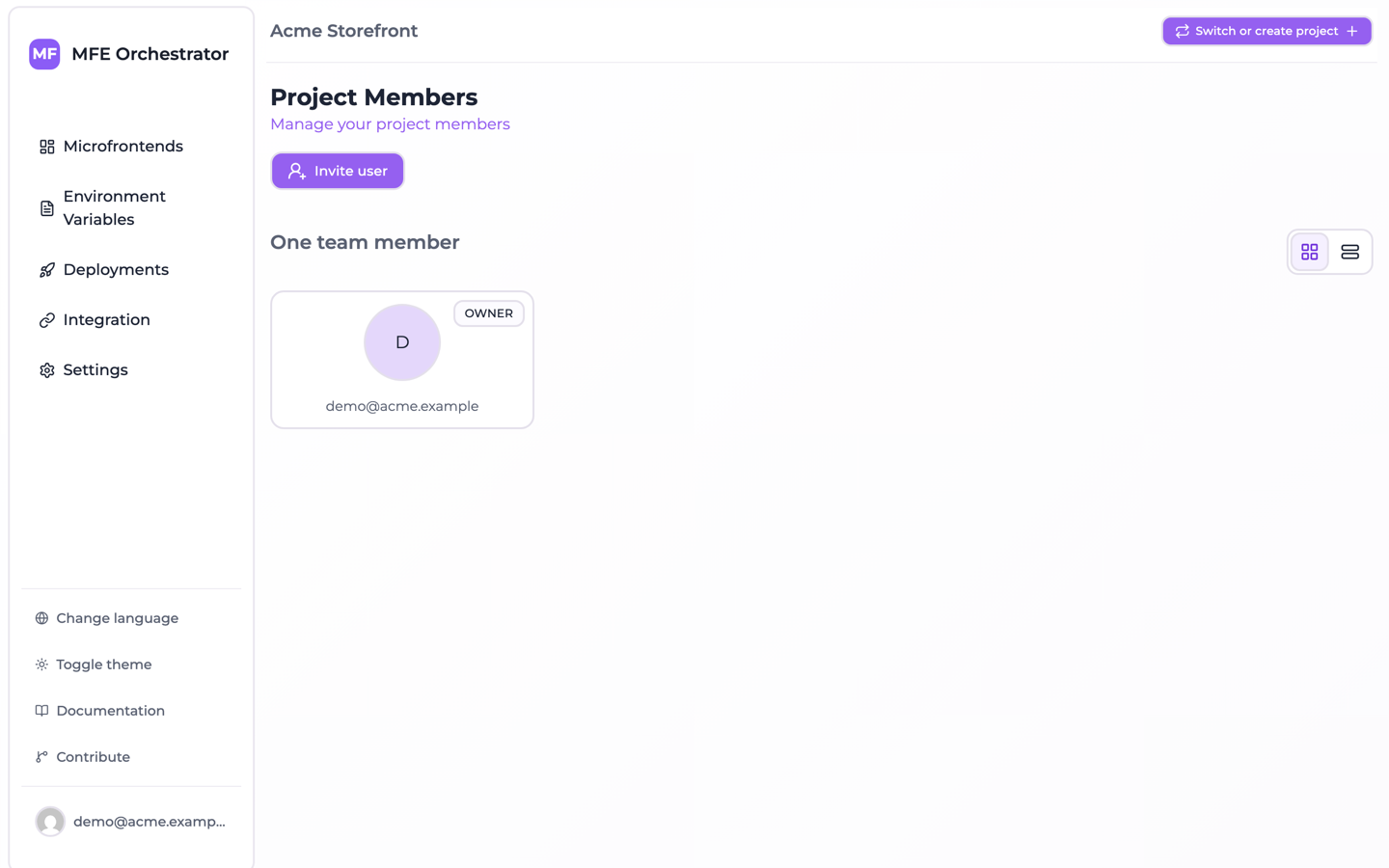
-
Enter their email address.
-
Choose a role.
-
Send invitation.

An email goes out with an invitation link. The invitee follows it, signs in or registers, and joins the project with the role you chose — see Accepting an invitation for the screen they land on and how long the link lives.
A project sits inside an organization, so inviting somebody to a project also adds them to that organization — as a plain member, created already accepted. That membership grants nothing on its own: a plain member reaches only the projects they were invited to, which is exactly the project you just invited them to. Somebody who already holds a role in the organization keeps it; a project invitation never demotes an admin. Declining the invitation takes the implicit membership back again, unless they have other projects there. See Roles and project visibility.
Invitations are delivered by email, so the installation needs SMTP configured. On a self-hosted
instance without EMAIL_SMTP_HOST set the invitation does not fail — it degrades. No email is sent,
no link is generated, and the address you typed is added to the project as an already active
member, with nothing having proved that the person owns that address. Resending an invitation is
the only action that errors in that state.
That means a typo hands the role you picked to whoever owns the address you mistyped. Configure SMTP before you invite anybody — see Environment Variables.
Managing invitations
Accepted members and pending invitations are two separate sections of the page, not one list with a status column:
| Section | Columns |
|---|---|
| Members — as cards, or as a table from the view switcher | User, Role, Actions |
| N pending invitations — the heading counts them, and appears only when there are any | Email, Role, Expires on, Actions |
An invitation expires five days after it is sent, which is the date under Expires on.
For a pending invitation you can:
- Resend — send the email again, for the classic case of it landing in spam. The only action with a visible label, and even that is hidden on a narrow window.
- Revoke — cancel it, so the link no longer works. An icon-only button: the ✕ at the end of the row, which names itself on hover.
Changing a role
Choose Edit access on the member's row. The dialog changes the role and the Access: the Whole project, or Specific domains only. An Admin always has the whole project. The last Admin cannot be given another role.
Only a project Admin, or an organization Owner or Admin, can change a role. For an invitation that is still pending, inviting the same address again also refreshes the role and sends a new link.
Removing a member
Remove them from the row's actions — the trash icon in the table, the Remove button on the card. The confirmation is a plain dialog naming the person ("Are you sure you want to remove … from this project?"), not the type-the-name gesture that deleting a project asks for. The button is disabled for the last Admin, and when the project would be left with no members at all.
They lose access to this project immediately; their account and their membership of other projects are unaffected.
Somebody who accepted the invitation stays in the organization as a plain member with no project — harmless, since that grants nothing, but they remain on the organization's members list. Take them out from the organization page if you want them gone entirely; doing so also removes them from every other project of that organization. An invitation that was never accepted is cleaned up on its own when you revoke it.
People leaving is also the moment to audit API keys. A key that person created keeps working after they are removed — keys belong to the project, not to the user who created one. Delete any key they were the only consumer of: deletion is the only thing that stops a key authenticating, as Machine access explains.
Authentication
How members sign in depends on the installation:
| Method | Notes |
|---|---|
| Email and password | Available when embedded login is enabled |
| Available when configured | |
| Microsoft Entra ID (Azure) | Available when configured |
| Auth0 | Available when configured |
The hosted console offers email/password and Google. For self-hosted installations, the enabled providers are whichever you configure — see Enable SSO.
Whichever method a user signs in with, their memberships are the same: authentication decides who they are, project membership decides which projects they reach.
Machine access
For CI pipelines and scripts, use API keys rather than a user account. A key belongs to the project, so it survives any change to your own account.
The create dialog asks for two things, a name and an expiration date; the role is not among
them, and every key the console creates is stored as MANAGER.
A key past its expiration date, or revoked, is refused on the next request. Delete a key you no longer need. See API keys.
Creating a "service user" with a shared password is the anti-pattern here: it cannot be rotated without coordinating with everyone using it, and it muddies the audit trail.