Import repositories as frontends
A project that already exists does not start from an empty frontend list: its frontends are repositories that have been around for months, one per team. Declaring them one by one in the console is the boring part of adopting the orchestrator, so the frontends dashboard can read the repositories reachable through a code repository connection and create one frontend per repository, in a single pass.
The import only creates and links the frontends. It does not clone, build or deploy anything: uploading a version and assigning it to an environment stays a separate, explicit step.
Before you start
The import needs a code repository connection on the project — a GitHub account or organization, a GitLab group, or an Azure DevOps project — configured under Settings → Resources → Code Repositories. Until at least one connection exists the action is not shown at all, because there would be nothing to list.
Where the action is
On the Frontends dashboard, Import from repository sits next to Add New Frontend in the page header, and again in the empty state of a project that has no frontend yet.
On the Structure of a functional domain, the Add frontend and Add service menus also offer Import from repository. From there every imported repository lands in that domain, and from Add service it becomes a service instead of a frontend (see Importing as services). It is the only place in the console to import services.
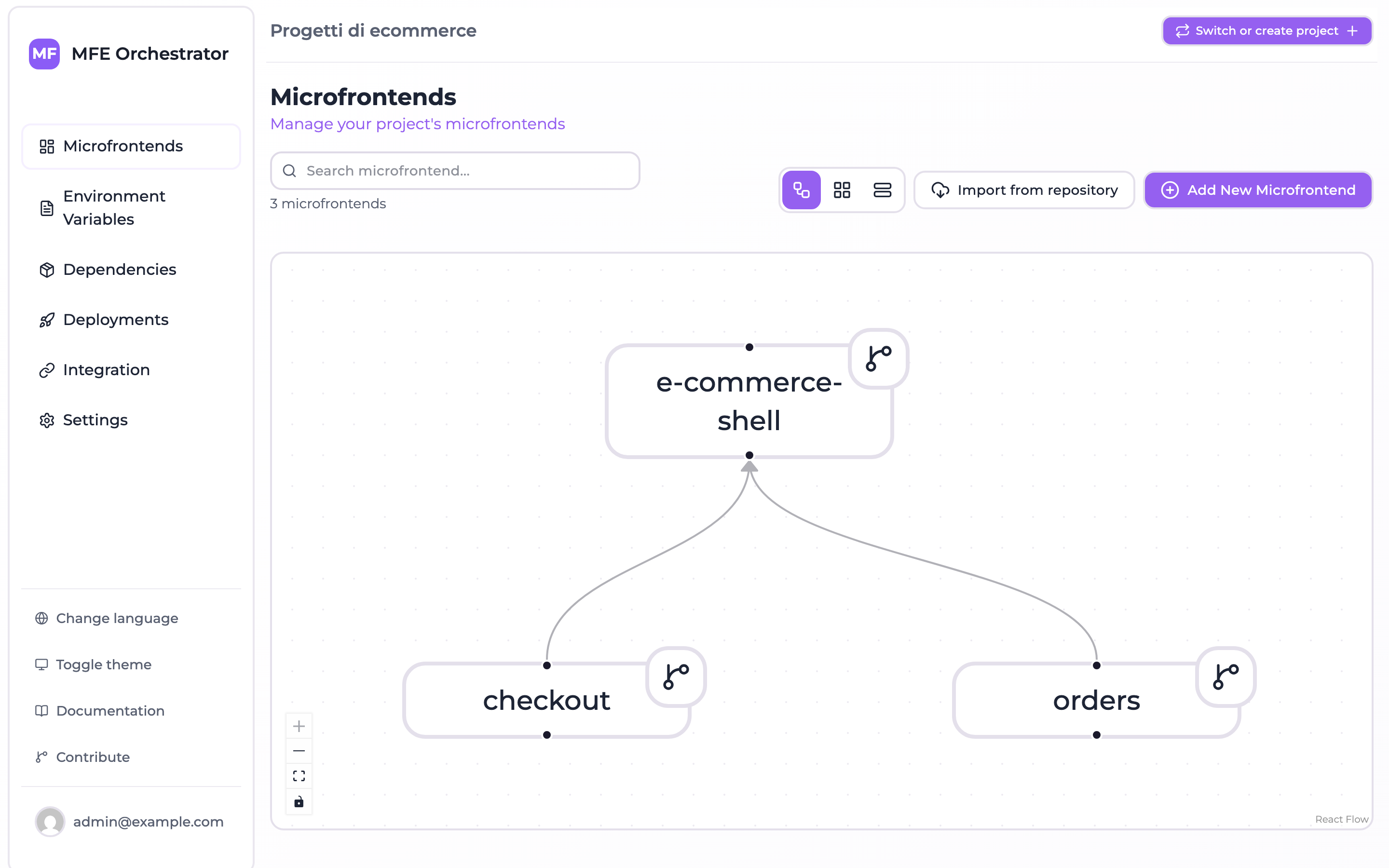
Choosing what to import
The dialog lists every repository the connection exposes, sorted by name, and shows for each one the slug the frontend would get.
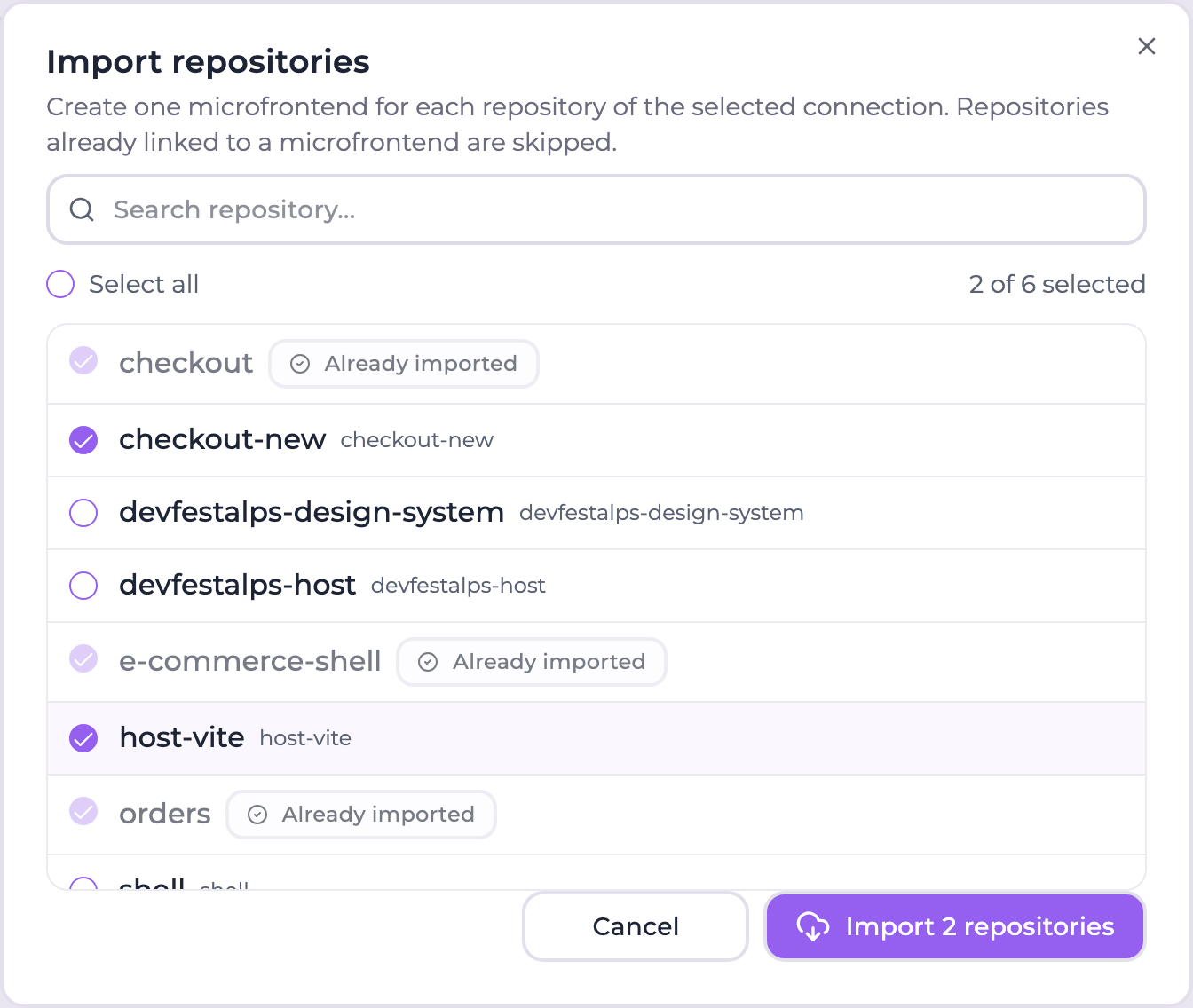
- Connection selector — shown only when the project has more than one connection. The default connection of the project is preselected. Switching connection clears the selection.
- Search — filters the list by repository name.
- Select all — selects the repositories currently visible, so it composes with the search: filter by prefix, select all, refine, import.
- Already imported — repositories already linked to a frontend or a service of this
project carry an Already imported badge in place of the slug and cannot be selected. The API still reports the
slug they were imported with, in
slugand inimportedAs.
A repository counts as already imported when its provider id matches the one stored on a frontend of the project linked to the same connection. Frontends created by hand do not always carry that id — it is only known once the repository exists — so a case-insensitive match on the repository name is used as a fallback.
What each import creates
One frontend per selected repository, with:
| Field | Value |
|---|---|
| Name | The repository name |
| Slug | The name slugified (lowercase, non-alphanumeric runs collapsed to -), with a numeric suffix on collision |
| Description | The repository description, when the provider exposes one |
| Version | 1.0.0, or the version sent to the API |
| Host | The default storage of the project when there is one, the Flightroom Hub otherwise, with entry point assets/remoteEntry.js |
| Code repository | Linked and enabled, with the provider id, the HTTPS and SSH clone urls and — on GitLab — the group and path |
Those are the same defaults the add frontend form applies, so an imported frontend is not a second-class one: continue from its detail page exactly as you would with a hand-created frontend.
Slugs are unique per project. When the slugified name is taken, the next free numeric suffix is
used (header, header-2, header-3), and the suffix is allocated across the batch too, so
importing two repositories that slugify identically produces two frontends rather than a
failure.
Importing as services
Imported as services, each repository creates a service with the same name, slug, description and code repository link, and no version: the first one is registered by its CI, as for a service made from a template. Services have a slug space of their own, separate from the frontends'.
A service slug takes 2 to 50 lowercase letters, digits or dashes, because it names the CI registration URL of the service. A repository whose slug would be longer lands in failed: create that service by hand with a shorter slug.
Partial results are the normal case
Repositories are imported independently: one that fails does not abort the batch and does not roll back what has already been created. The result splits into three lists:
- imported — the created frontends or services, with the slug and the id each one got
(
frontendIdorserviceId). - skipped — repositories that were not touched, with the reason:
ALREADY_IMPORTEDfor one already linked to a frontend or a service,NOT_FOUNDfor an explicitly requested id the connection does not expose (a repository deleted or made private since the list was loaded). - failed — repositories whose creation raised an error, with the error message.
The console reports each list on its own: a success notification with the number of frontends created, an error notification naming the repositories that failed. When something failed the dialog stays open, reloads the list and clears the selection: the repositories that were imported come back flagged as already imported, and the failed ones can be selected again for a retry. When the batch imported nothing and failed on nothing — everything was already linked — an informational notification says so instead.
API
Both endpoints are authenticated and scoped to the project owning the connection.
List what can be imported
GET /api/repositories/:codeRepositoryId/importable-repositories
Optional query parameters:
groupId— GitLab only — lists the repositories of that group instead of the one configured on the connection.target—frontend(the default) orservice: the slug shown is the one a frontend, or a service, would get.
[
  {
    "repositoryId": "812345678",
    "name": "checkout-mfe",
    "description": "Checkout frontend",
    "defaultBranch": "main",
    "cloneUrlHttps": "https://github.com/acme/checkout-mfe.git",
    "cloneUrlSsh": "git@github.com:acme/checkout-mfe.git",
    "webUrl": "https://github.com/acme/checkout-mfe",
    "slug": "checkout-mfe",
    "alreadyImported": false
  }
]
An already imported repository carries alreadyImported: true and an importedAs object with
the _id, slug and name of the frontend or service it is linked to.
Import
POST /api/repositories/:codeRepositoryId/import
{
  "repositoryIds": ["812345678", "812345679"],
  "groupId": 4242,
  "version": "1.0.0",
  "target": "frontend",
  "domainId": "6717c0f2f1a2b3c4d5e6f701"
}
Every field is optional. target is frontend (the default) or service; any other value is
refused with IMPORT_TARGET_INVALID. version applies to frontends only. domainId puts
every created member in that functional domain of the project. Omitting repositoryIds imports
every repository of the connection that is not linked to a frontend or a service yet — the "adopt the whole organization" call, which is
also what makes the endpoint usable from a bootstrap script.
{
  "imported": [{ "repositoryId": "812345678", "name": "checkout-mfe", "slug": "checkout-mfe", "frontendId": "6717c0f2f1a2b3c4d5e6f708" }],
  "skipped": [{ "repositoryId": "812345679", "name": "header-mfe", "reason": "ALREADY_IMPORTED" }],
  "failed": []
}
The response is 200 even when nothing was imported: an empty imported with a populated
skipped means the connection had nothing left to adopt, which is a successful outcome and not
an error. Read the three lists rather than the status code.
Listing walks the pages of the provider API 100 repositories at a time, up to 50 pages, so connections with more than the provider's default page (30 on GitHub, 20 on GitLab) are listed and imported completely.
Next steps
- Dependency analysis — once the repositories are linked, scan them and align their peer dependencies.
- Versions and builds — produce and upload the artifacts the imported frontends will serve.